Submission
The management interface has three sections that allow you to manage submission settings for journals.
Submission Settings
Submission Fields Configurator
Additional Submission Fields
Submission Settings
This section allows you to control generic submission settings that affect how submission is experienced.
- Disable Journal Submission
If checked, this setting disables the submission system.
- Submission Intro Text
Introductory text for the head of the Submission page.
- Copyright Notice
Copyright information for authors usually includes information on licenses used for publishing and rights retained.
- Submission Checklist
Usually a numeric list of items an author should check before submitting the paper.
- Acceptance Criteria
The criteria the journal uses to evaluate your paper.
- Publication Fees
Any publication fees associated with submitting the paper.
- Editors for Notification
This allows you to select which Editors are notified of new papers being submitted.
- User Automatically Author
If enabled the submission system assumes the user submitting the paper is also an author, they can be removed if required.
- Competing Interests
This setting is deprecated in favour of the Submission Configurator version.
- Submission Summary
This setting will be moved to the submission configurator. If enabled, this asks for a lay summary of the paper to be submitted.
- Accepts Preprint Submissions
If preprints are enabled and this setting is enabled an author will be able to submit a preprint directly from the preprint service into the journal for evaluation.
- Focus and Scope
The journal’s Focus and Scope, displayed on the Submissions page.
- Publication Cycle
The journal’s publication schedule e.g. Yearly or Continuous, displayed on the Submissions page.
- Peer Review Info
Information on how peer-review is conducted, displayed on the Submissions page.
- File Submission Guidelines
General instructions for authors when they get to the file upload stage.
- Manuscript File Submission Instructions
Specific instructions for manuscripts, appearing on the manuscript upload pop-up.
- Limit Manuscript Types
If enabled, only Doc, Docx, RTF and ODT files will be accepted as manuscript files during submission
- Data and Figure File Submission Instructions
Specific instructions for figures and data files, appearing on the figure and data upload pop-up.
Submission Fields Configurator
The submission fields configurator lets you enable or disable submission fields. This page has three complexities:
- Disabling License, Language or Section
If you disable one of these fields you need to set a default value
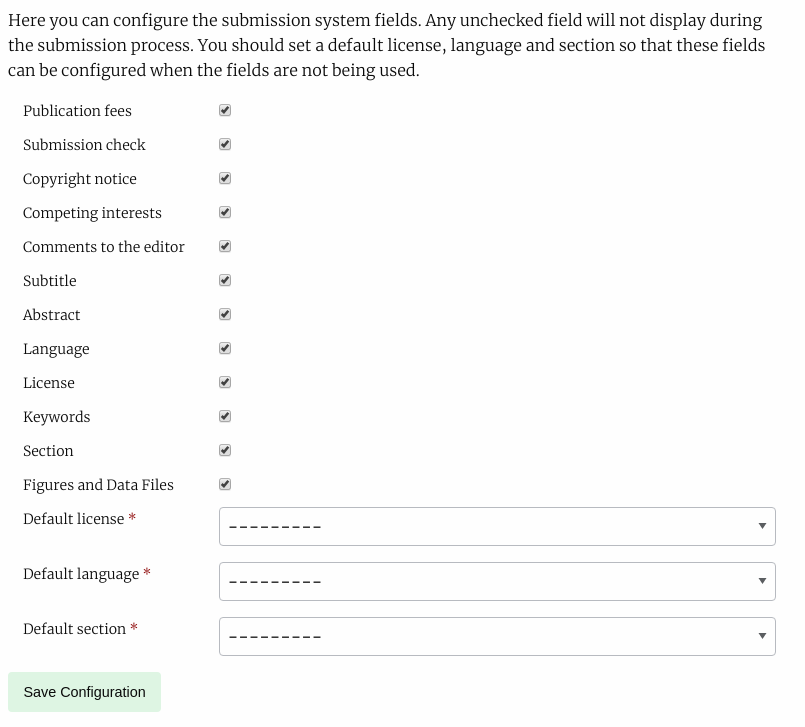
Submission Fields Configurator
You can enable or disable almost all fields, except Title, Manuscript Files and Authors.
Additional Submission Fields
The additional submission fields page allows us to add custom fields to the Article Info submission page. It works in a similar fashion to the Review Forms generator.
Field types are:
Text Field
Text Area
Checkbox
Select (dropdown)
Email
Upload
Date
To add a new Element:
- In the form add Name and select a Kind
If you choose “select” as kind you will need to add the options to the Choices field, these should be seperated by the bar “|” characted e.g. choice 1|choice 2|choice 2 or 1|2|3|4|5 if you wanted a numeric choice. If you select any other Kind, ignore the Choices field.
- Required
If this field MUST be completed, ensure this box is checked, if it is optional make sure it is not checked
- Order
The order in which this element will appear on the form
- Width
1/3, 1/2 or Full width. If you put two half width elements next to each other in order they will both display on the same line
- Help text
This text will display under the Name field on the form and explain what the reviewer needs to do with this field.