Review
The management interface has two sections that allow you to manage peer review settings for journals.
Review Settings
Review Forms
Review Settings
Under review settings we can control how peer review operates for the given journal. The settings editable here are:
- Review Guidelines
A set of generic review guidelines that a reviewer should follow.
- Default Review Visibility
Either Open, Anonymous or Double Anonymous, this is the default information visibility for a review assignment. If open, authors can see reviewers and vice versa, if single anonymous reviewers can see authors, if double anonymous neither can see information on the other. When using double anonymous review, the editor must ensure the manuscript files are anonymous.
- Default Review Days
The default number of days a reviewer is given, this is used to then control reminders. This field is set to 56 days (8 weeks) initially. The due date can be changed on a per review basis.
- One Click Access
If enabled a special access token is appended to the reviewer link in the assignment email, this link allows the reviewer to view the review without logging into the system. Once the review is complete the token is deleted so it cannot be reused. Tokens are UUID4s which are unique.
- Draft Decisions
If enabled, section editors will not be able to accept papers, instead they can make recommendations to senior editors who can then accept papers.
- Enable open peer review
Turns on the open peer review feature (see below).
- Default Review Form
The default review form that will be automatically selected when assigning a reviewer.
- Reviewer Form Download
If enabled this allows the Reviewer to download a copy of the review form in DOCX format to complete offline and then upload.
- Enable save review progress
If enabled, reviewers will be able to save the progress in a peer-review assignment and come back later to complete it later (Only recommended for journals using custom review forms that are particularly long)
- Accept Article Warning
This is a block of text displayed to the editor before they accept an article, prompting initial DOI and metadata registration with Crossref if the journal or press is set to use Crossref. You can use the setting to provide a readout of current metadata so the editor can do a quick check of what will be sent to Crossref. To show registration information, populate the setting with
{{ article.registration_preview|safe }}
- Enable expanded review details
When this setting is enabled, the editor’s review dashboard will show all active reviews. Otherwise it will show just a count of completed reviews.
Sharing Peer Reviews
Note
Added in v1.5.1 editors have two options to share reviews with other peer reviewers.
In the review settings page, under the “Sharing Peer Reviews” header there are four settings that control how editors can share peer reviews.
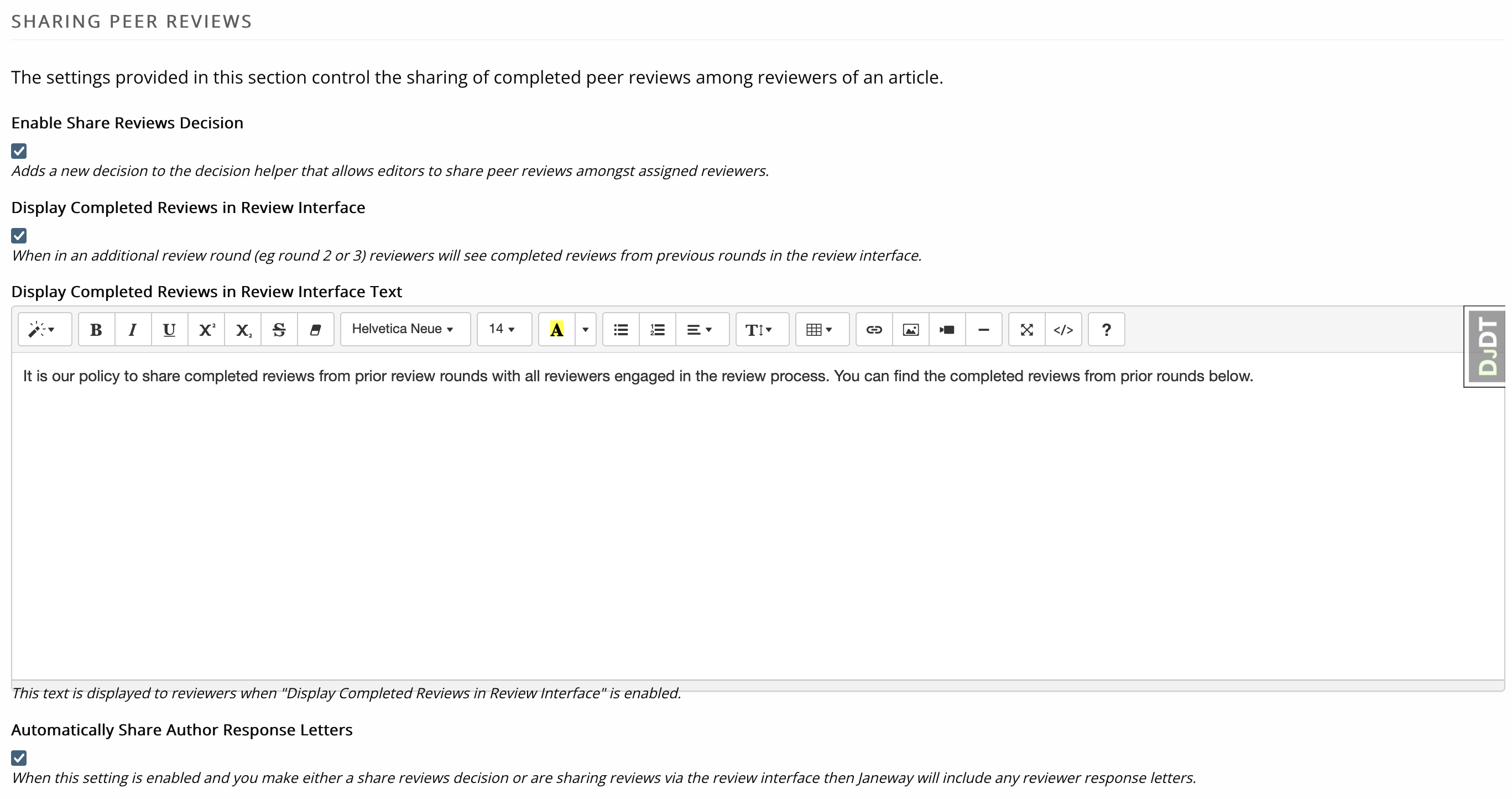
Settings for controlling sharing of peer review.
Display Completed Reviews in Review Interface
When enabled and in an additional review round (eg round 2 or 3) reviewers will see completed reviews from previous rounds in the review interface.
Note
Reviews that are not complete, do not have a decision or are part of the same round of review are excluded from being shared.
Display Completed Reviews in Review Interface Text
Default text displayed to explain why reviews are being shared with other peer reviews. Can be customised at the per-journal level.
Review Forms
Janeway allows you to generate as many review forms as you like. When a new journal is created a default review form is generated automatically (called Default Form) it has one element: a text area called “Review”.
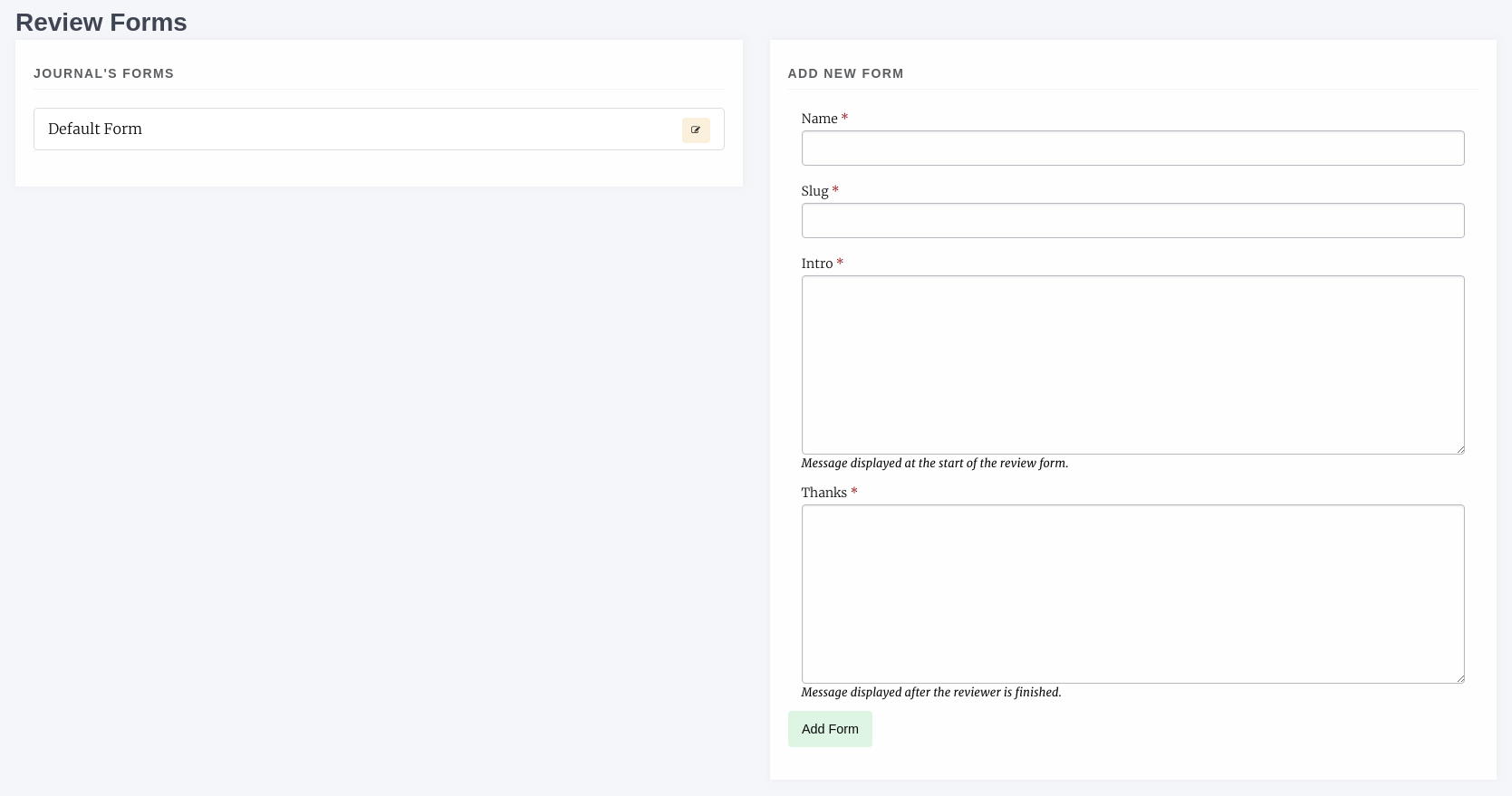
Review Form interface
To create a new form complete the form on the right:
Form Name
- Slug
a version of the form name but in all lower-case, no spaces e.g. default-form
- Intro
Guidance text specific to this form
- Thanks
Text that is displayed after the reviewer has completed their review
Once you have created your new form you can add Fields known as Elements in Janeway by selecting the yellow edit button. Elements can be:
Text Field
Text Area
Checkbox
Select (dropdown)
Email
Upload
Date
To add a new Element:
Click Add Element
- In the modal supply a name and kind
If you choose “select” as kind you will need to add the options to the Choices field, these should be seperated by the bar “|” characted e.g. choice 1|choice 2|choice 2 or 1|2|3|4|5 if you wanted a numeric choice. If you select any other Kind, ignore the Choices field.
- Required
If this field MUST be completed, ensure this box is checked, if it is optional make sure it is not checked
- Order
The order in which this element will appear on the form
- Width
1/3, 1/2 or Full width. If you put two half width elements next to each other in order they will both display on the same line
- Help text
This text will display under the Name field on the form and explain what the reviewer needs to do with this field.
- Default visibility
If enabled, by default this element will be visible to the reviewer once the Editor has approved the review for them to see. If disabled, the author will not see this element unless the Editor overrides the default setting.
As you go along you can use the Preview Form button to see what the form will look like. Here is an example of the default form edited to have two additional fields with 1/2 widths.
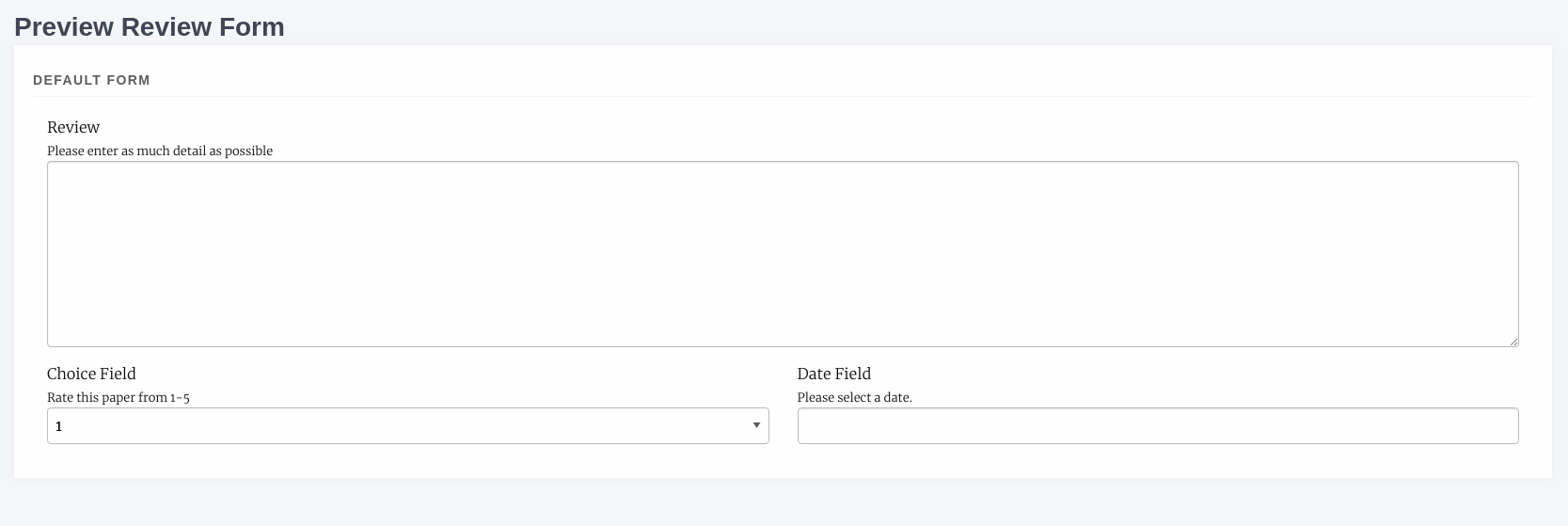
Review Form preview
Open Peer Review
This feature allows peer reviews to be made public with the consent of the reviewer, and when chosen for public display by the editor. By default, this feature is off and peer reviews will remain confidential.
Note
Open peer review only shows text that is typed into the peer review assignment box, not uploaded files. This is for accessibility and display purposes. Accordingly, if you enable open peer review, we recommend encouraging reviewers to use the text box rather than uploading files.
When the setting is enabled, reviewers are asked for their permission to make the review public.
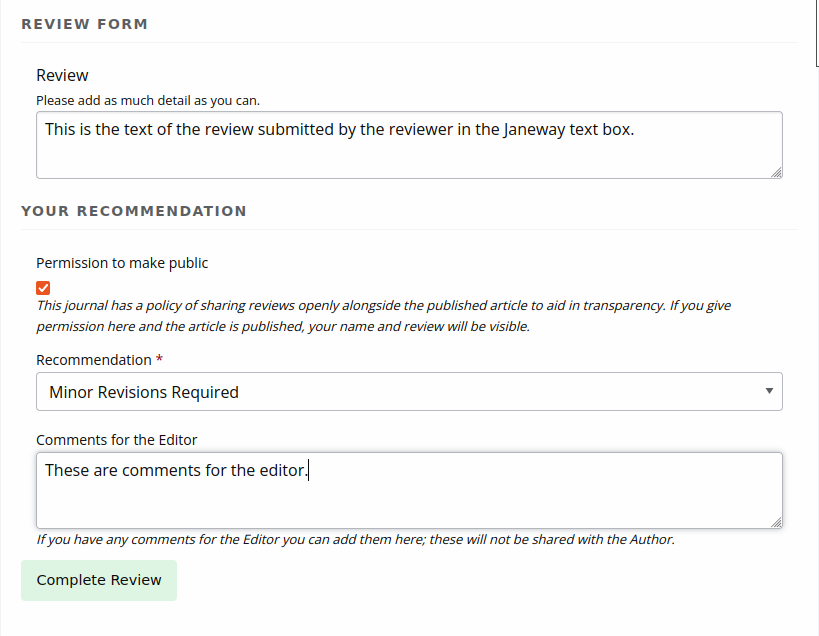
Reviewers are asked for permission to make reviews public
Then, during prepublication, the editor can choose which of the consented reviews (if there are any) to make open.
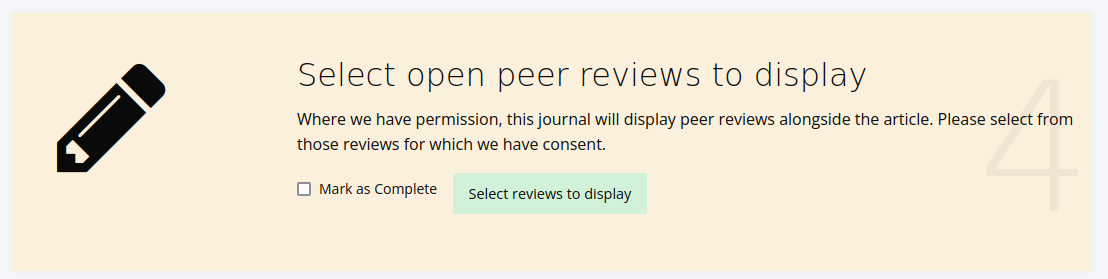
Editor selects peer reviews to display
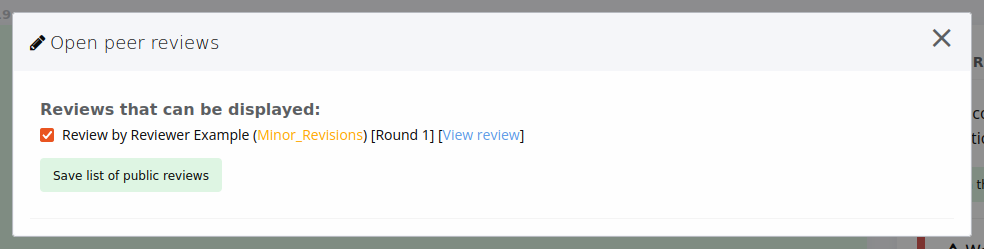
Reviews that can be displayed
If a peer review has been approved for public display by both the author and the editor, readers will be able to open a pane to view the peer review text.
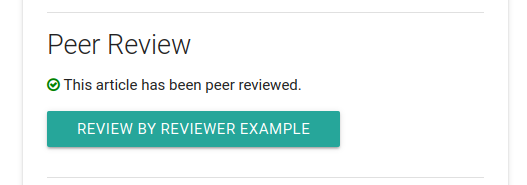
Button to open peer review
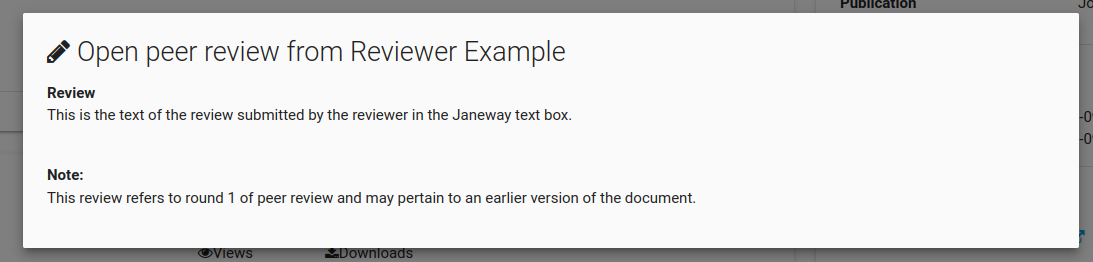
Open peer review pane