Articles and Issues
Article Display Settings
The Article Display Settings page has settings for controlling the way articles look and for deciding how metrics are displayed.
Disable Article Images
Display Guest Editors
Suppress How to Cite
View PDF Option
Disable Metrics Display
Suppress Citation Metrics
How To Cite is an auto-generated citation based on a custom OLH citation style. Note that a previous version of the citation included “p” before page ranges. To get this back, enter a custom value in Page Numbers in the Edit Metadata pane for each article.
You can suppress How To Cite for all articles with Suppress How To Cite. You can also override it for individual articles by entering a custom citation in the Edit Metadata pane for each article.
Article Images Manager
The article images manager pulls is an interface for editing all of the images for a given article.
- Large Image File
The large image is a file used in the heading of the article page on some themes. It is resized to 720x324 px upon uploading so it is recommended an image be either this size or larger. This image will also be used as the meta image if none is supplied and will be used on the carousel when Article display is enabled there.
- Thumbnail
The thumbnail is displayed on article listing pages like the All Articles list or the Issue Articles list,
- Meta Image
The meta image allows you to override the image displayed when the article is shared on social media. If no meta image is supplied the large image file is used.

Example of large image file display

Example of thumbnail display on the article listing page
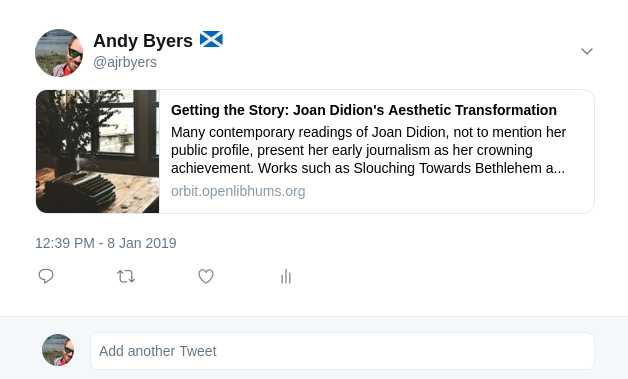
Example of a meta image on Twitter
Issue Manager
The issue manager lets you create, edit, delete and manage article records for issues.The main interface presents a list of your existing issue records with buttons to:
Create a new issue
Edit a given issue
Delete a given issue
Mark an issue as Current
It also displays some basic data about the issues like date published and the number of articles in an issue.
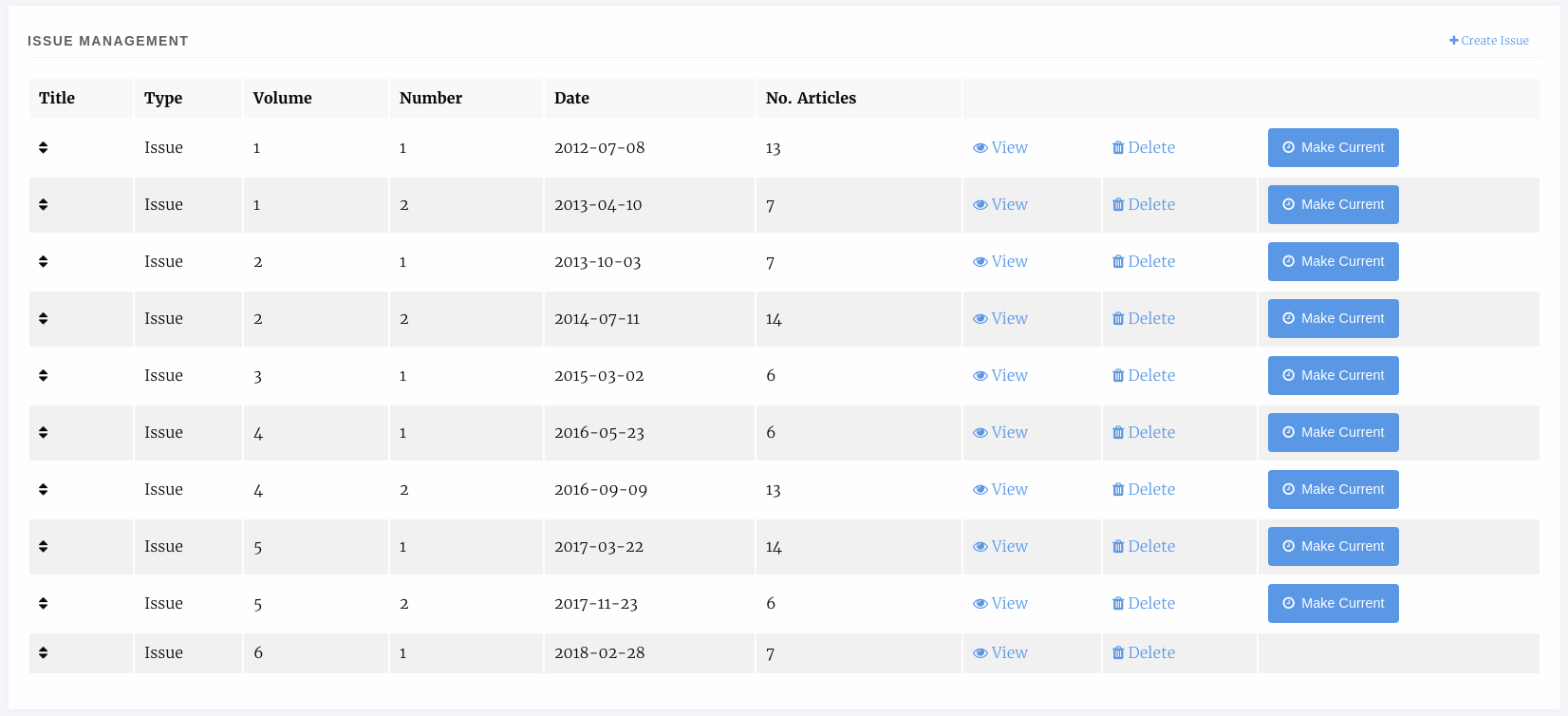
Issue list
Creating a New Issue or Collection
To create an issue select Create Issue in the top right and in the modal that appears you can complete the issue metadata.
- Title
Optional, a title for the issue.
- Volume
The volume number.
- Issue
The issue number.
- Date
The date published, if in the future the issue wont appear until the date published.
- Cover Image
The cover image, see example below.
- Large Image
A large image file used at the head of the issue page, will be resized automatically but should be landscape.
Description
- Issue type
Issues can be standard issues or can also be collections which are used to collect articles from across the journal into narratives.
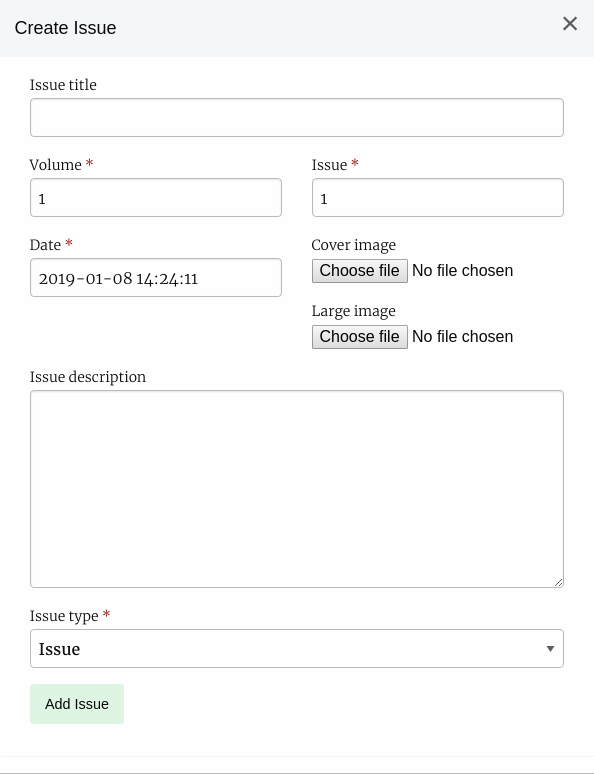
New issue form
- Issue DOI
Issues can have a DOI, which will be registered with all of its articles in crossref. If you are using Janeway’s autoregistration (recommended) or if you are not interested on registering DOIs for issues, you can leave this field blank.
Issue Articles
You can manage the article associated with a given issue by selecting the View option, the data of the issue will be displayed along with a list of articles grouped by section.
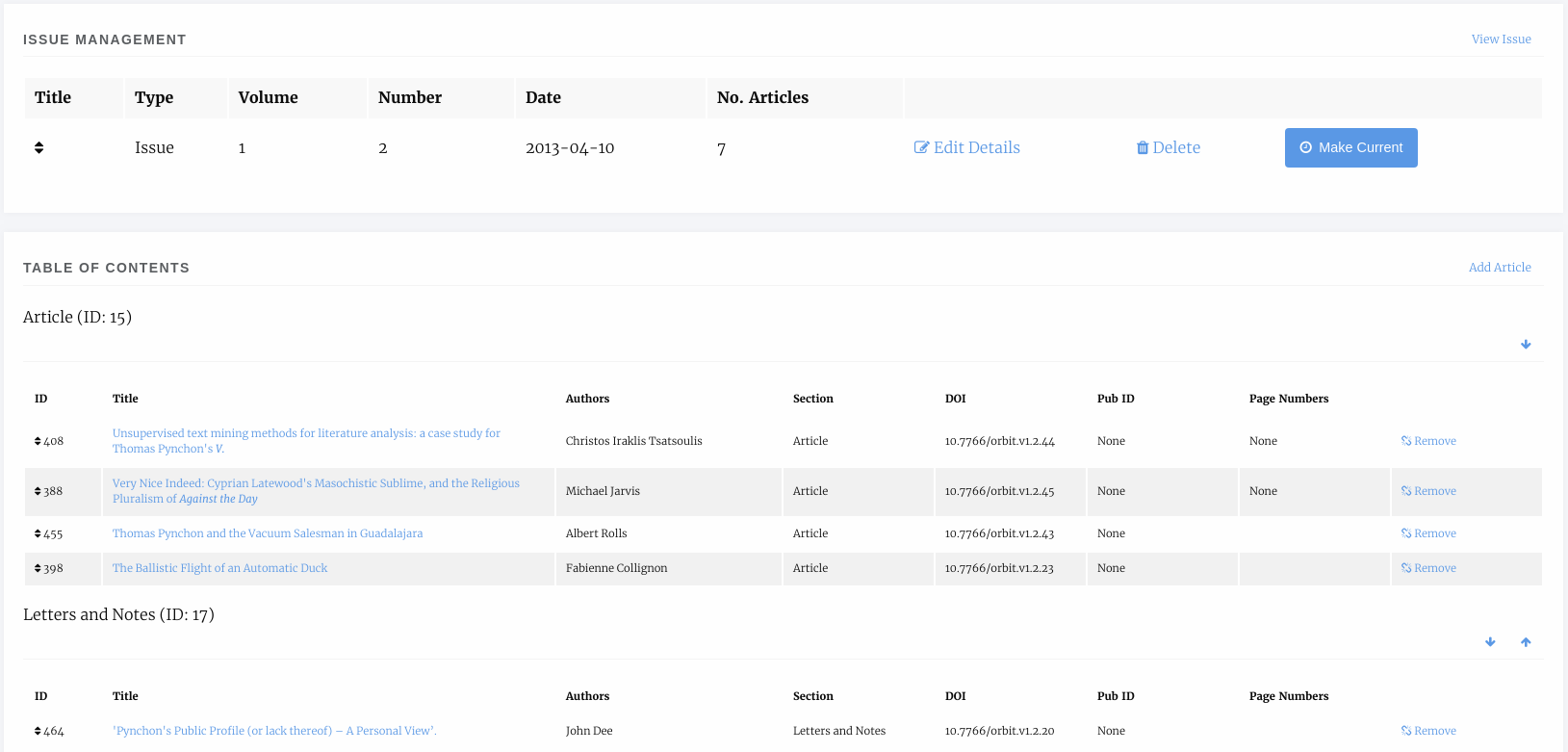
An issue page
You can reorder the Section headers using the arrows Up and Down arrows on the right and you can re-order the articles within their sections by dragging and dropping them into the order you want. To add a new article into the issue select Add Article and select the article you want to add.
In addition, if the issue has guest editors you can add them using the Guest Editor manager at the bottom of the Issue page.
Projected Issues
Janeway allows editors to mark articles as projected to be published within a given issue. This can be done in the Editor Assignment stage by using the “Assign Projected Issue” button.
Warning
Assigning an article a projected issue is not the same as assigning an article directly to an issue. Projected issues are used mainly for internal tracking.

On the Editor Assignment screen you can see which issue an article is projected to be in.
On the projected issue screen you can select, from a drop down, the issue you expect the article to be published in.
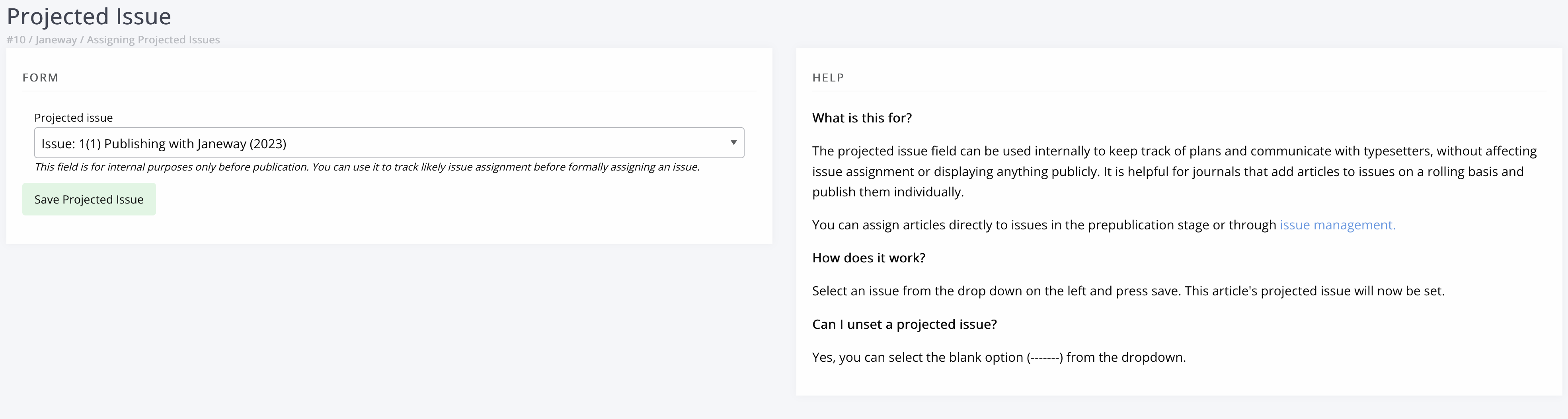
Select an issue and click “Save Projected Issue” to update the projected issue for your article.
Article Sections
Note
Article Sections has been redesigned as part of version 1.4
Sections are ways of grouping articles by their content type e.g. “Research Articles” or “Reviews”. From this interface you can edit the sections that are available on your journal.
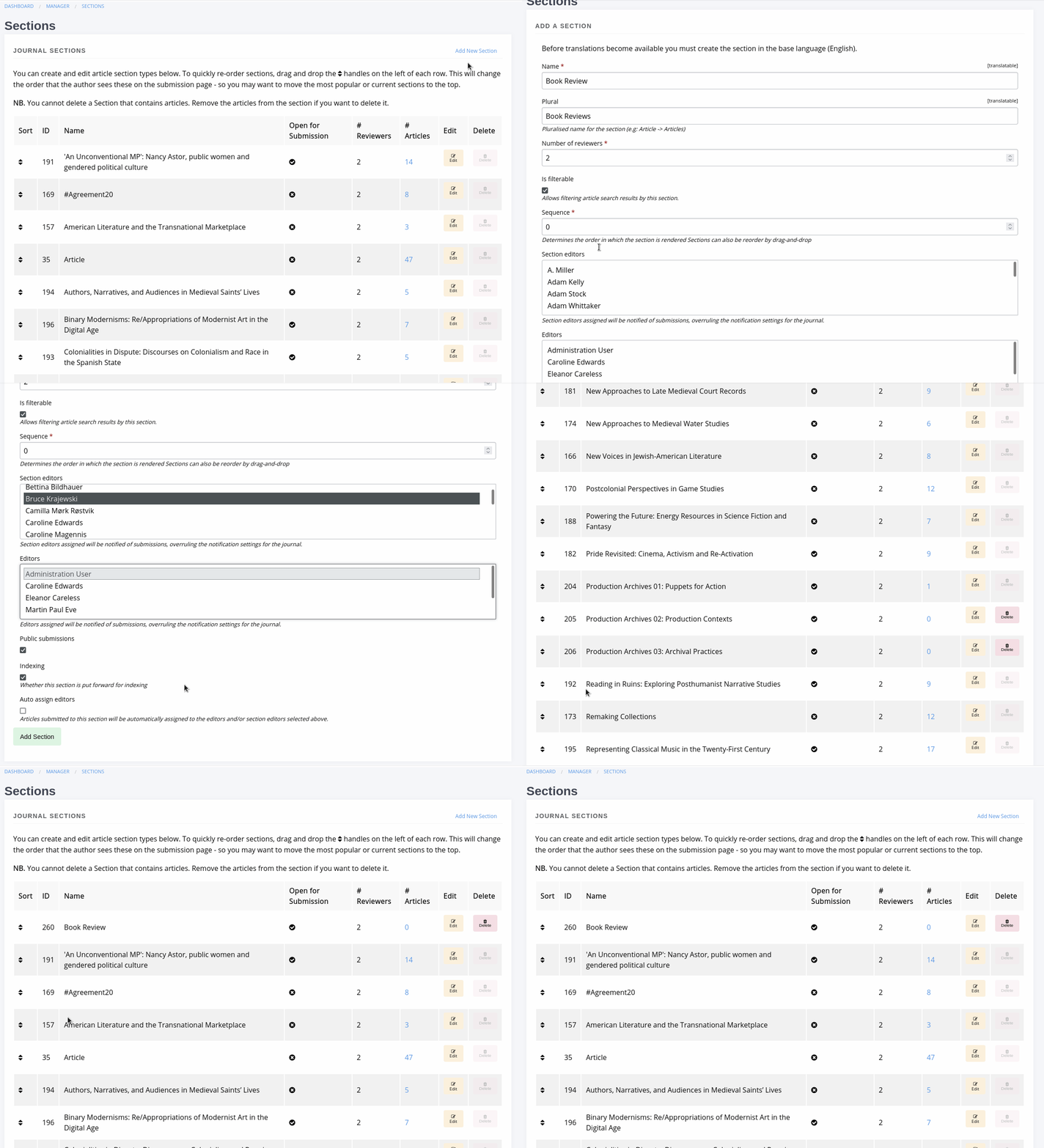
Section Manager
For each section you can supply:
Name
Plural name
- Number of reviewers
the number of reviewers generally require for this article type, may be 0 for “Editorials” etc.
- Is filterable
Whether this section should appear in the All Articles list filter options.
- Sequence
Order sections should appear in, can be changed using this field or by dragging and dropping.
- Section editors
The section editors for the section, they can be assigned to handle articles within thier section.
- Editors
Editors for this section will be notified when new papers are submitted into it.
- Public submissions
Checked if you want new submissions to be able to select this section.
- Indexing
Whether this section is put forward for indexing.
- Auto assign editors
Articles submitted to this section will be automatically assigned to any editors and/or section editors selected on the ‘Editors’ and/or ‘Section Editors box above.
You can edit sections but you cannot delete a section when it would orphan an article. If you wish to remove a section first migrate all of the articles using that section to a different section then the delete button will become available.
This field can also be disabled if you only have one article type, using the Submission Configurator.
Licence Manager
The Licence manager allows you to define what licenses are available for submission to your journal. By default Janeway loads all of the CC 4.0 licence types and an All Rights Reserved type. You can edit the list to fit your journals needs.
Each licence can have the following:
- Name
Full name e.g. Creative Commons Attribution 4..
- Short name
A shortened name e.g. CC BY 4.0.
- URL
A URL to a description of the licence.
- Text
The text of the licence.
- Order
Order in which the licence should appear, can be set here or changed via drag and dropping the licences.
- Available for Submission
If checked, this licence will be available for selection during submission.
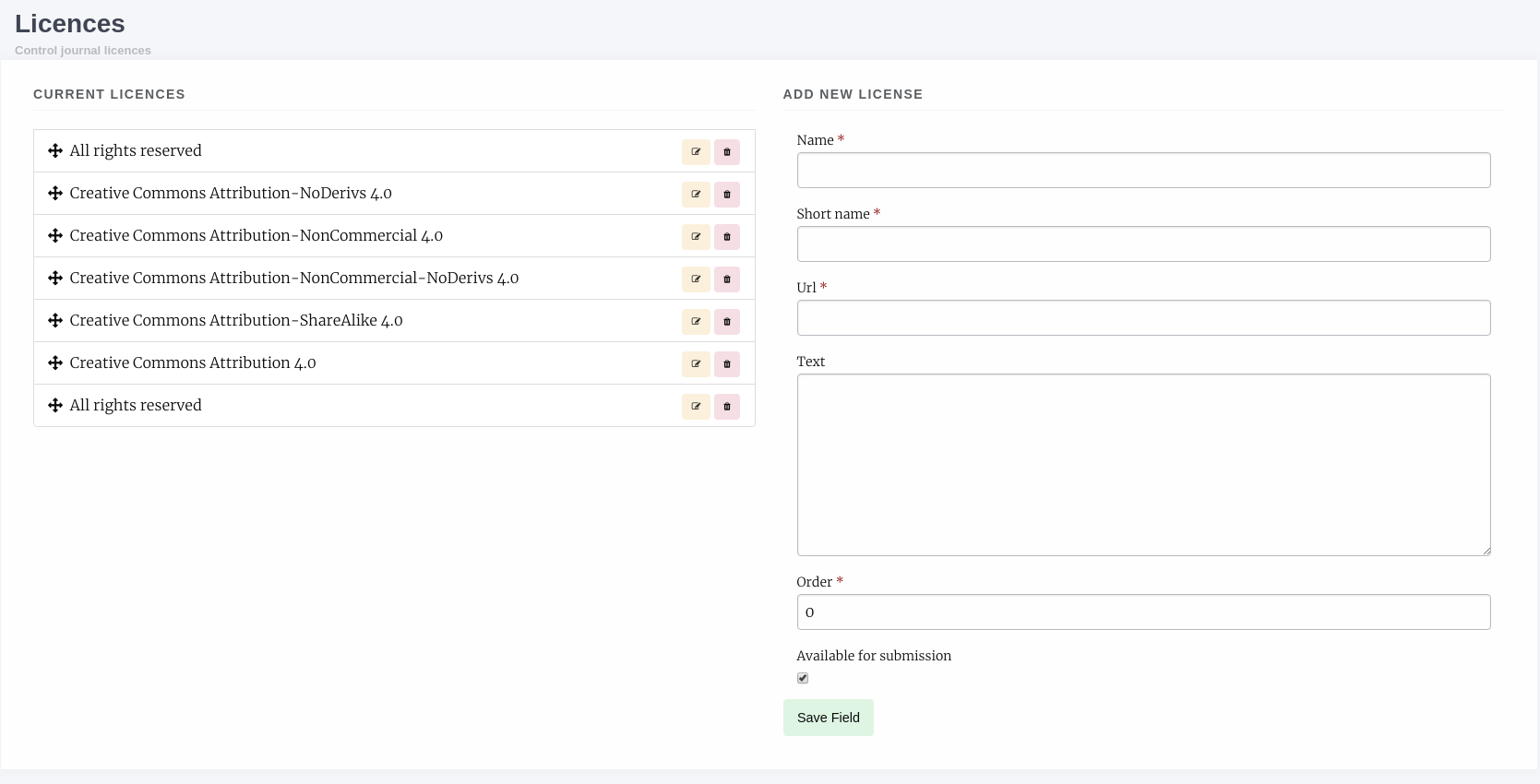
Licence Manager
This field can also be disabled if you only have one licence type, using the Submission Configurator.